


 Watch video




 Sign in with Google
YouTube Strategy
How to start a YouTube channel in 2026


Want to know how to start a YouTube channel and be ready to upload your first video in minutes? This quick, practical guide walks you through every essential step: create the channel, make it look professional, optimize it so YouTube understands your content, and lock it down with two-step verification. By the end you’ll know exactly how to start a YouTube channel and what to do next to get viewers.
Table of Contents
- Create your channel
- Pick a name (don’t overthink it)
- Make your channel look professional
- Write a short, keyword-rich channel description
- Set channel keywords
- Protect your channel with two-step verification
- Quick checklist before you record
- Now film and upload (and keep going)
- Resources and further reading
- Pro tips
- Where to go next
- FAQ

What’s the big idea?!
Get video inspo backed by data. Next Video Ideas analyzes your channel, audience, niche, and millions of YouTube datapoints to make your next video a #1.
Create your channel
First: make the channel. If you already have a Google/YouTube account you’re halfway there. Sign in, click your avatar, choose Switch account → view all channels → Create a new channel. That’s it. Your videos now have a home.
What’s that? You don’t have any videos yet? That’s OK. Try the free, no sign-up required TubeBuddy YouTube idea generator for inspiration.

Pick a name (don’t overthink it)
Choose a name that fits the channel’s focus. Use your own name if you plan to be the on-screen personality, or use a descriptive name tied to your topic (productivity, cooking, gaming, education). Look at successful channels in your niche for inspiration, but don’t stress on this too much at this stage: names can be changed later.
Make your channel look professional
Go to YouTube Studio → Customization. Upload a profile picture and a banner. These are the first impressions viewers get. If you’re comfortable on camera, use a clear photo of your face: it builds connection and tends to perform better. If not, use a simple high-contrast logo so it reads when it’s small on mobile.
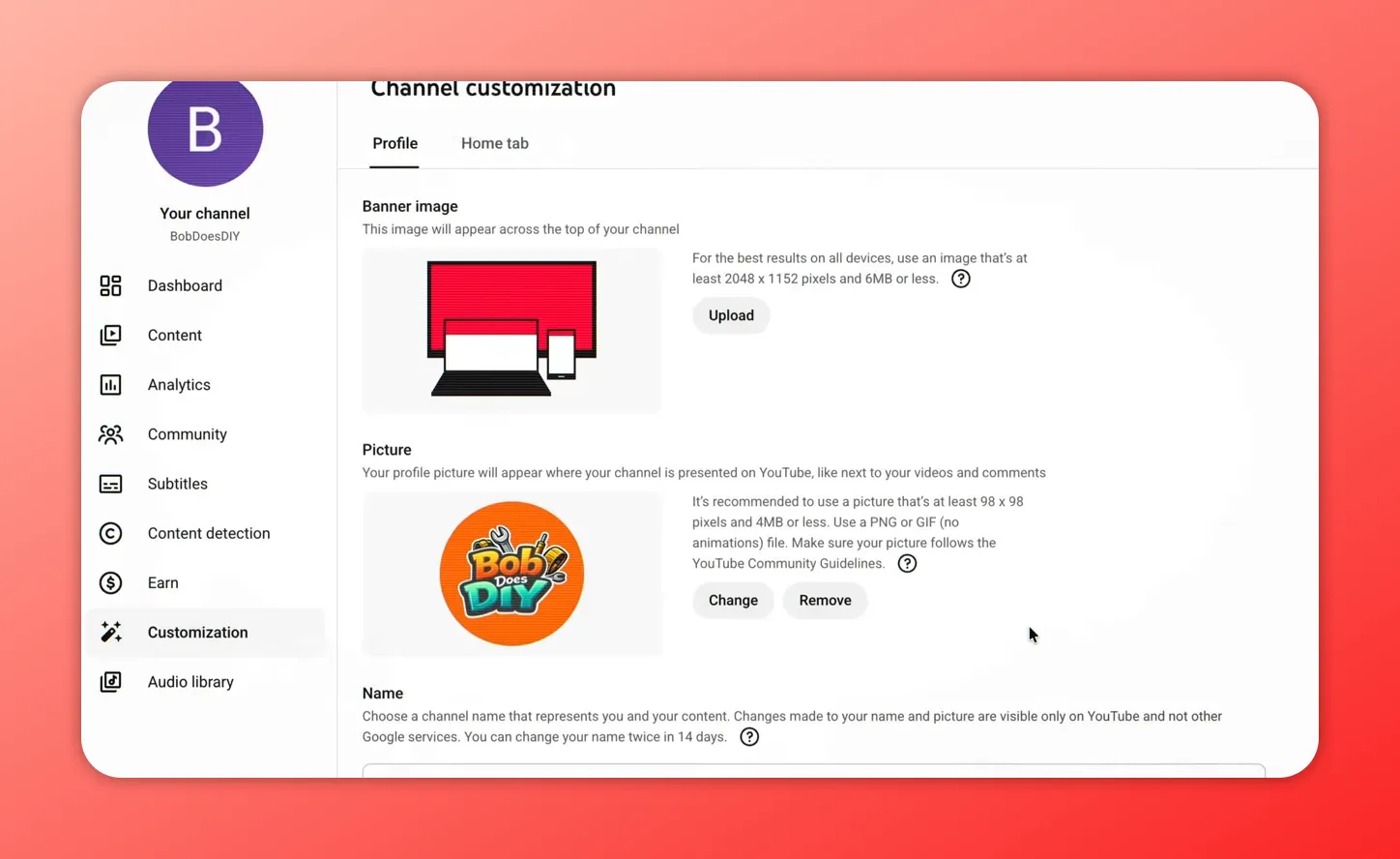
Your banner is a billboard: briefly say what the channel is about and include an upload schedule if you have one (or a simple call to action like “Subscribe for weekly tips”). If design isn’t your thing, free templates on Canva can get you started fast.
Write a short, keyword-rich channel description
In customization, add a concise description that answers three questions: What will you make? Who is it for? What can viewers expect if they stick around? Naturally include searchable phrases people actually type. This helps YouTube recommend your channel to the right audience.
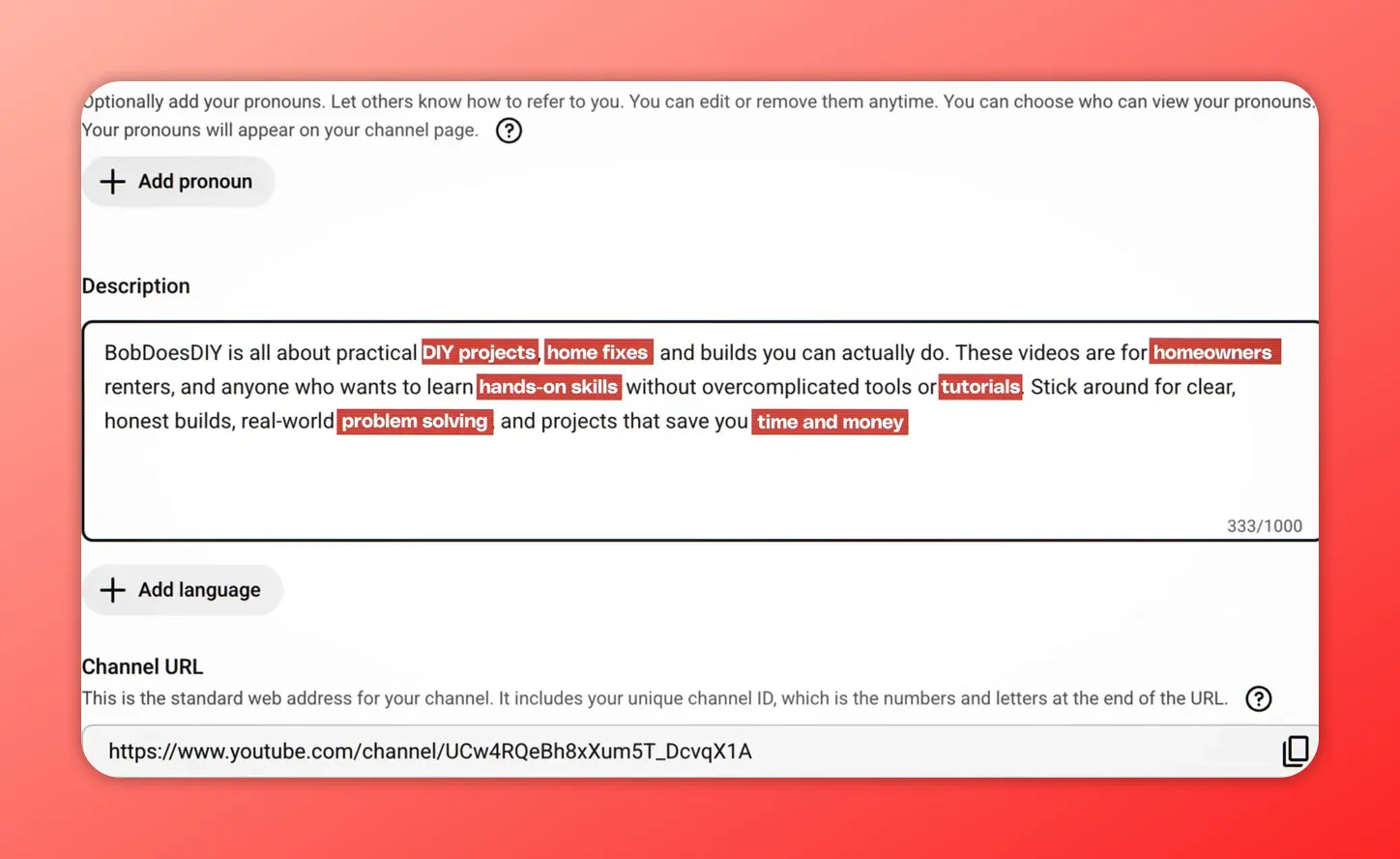
Set channel keywords
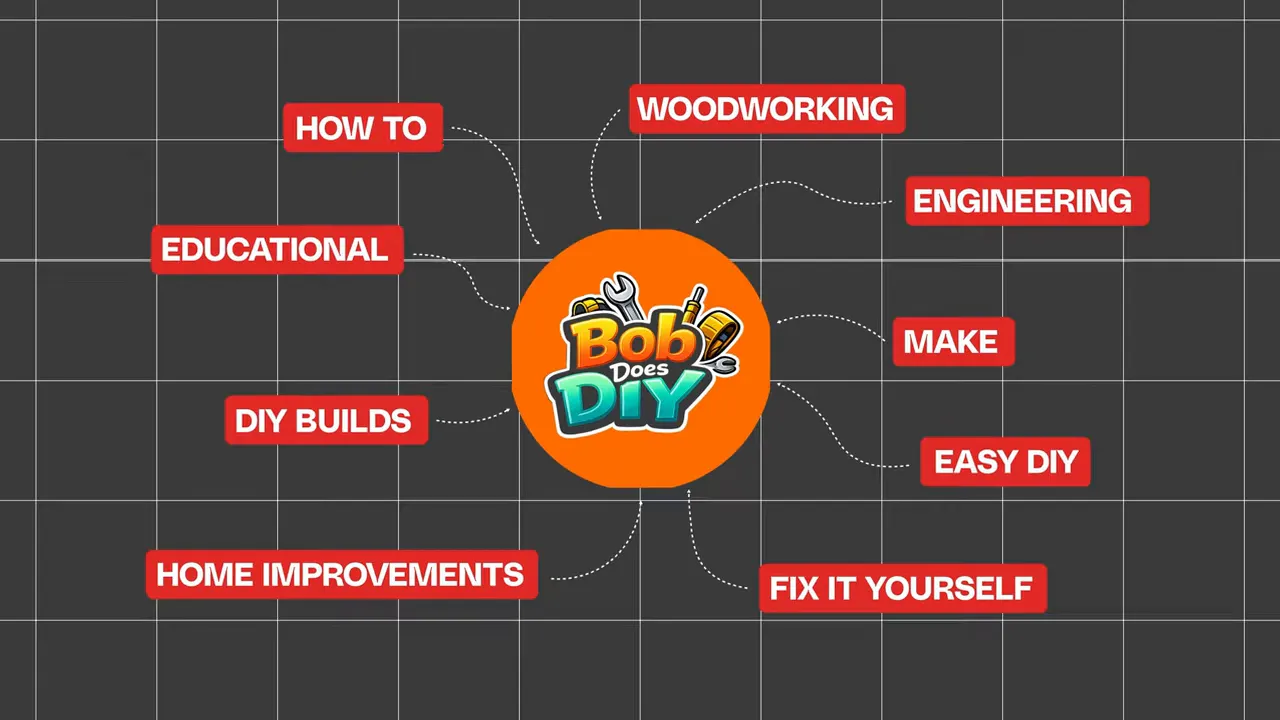
In YouTube Studio click Settings → Channel → Basic info and add 5–10 channel keywords that describe what your channel is about. These aren’t visible to most viewers but they signal the algorithm the kinds of videos you’ll publish. Tools like TubeBuddy’s Keyword Explorer can help find good target keywords.

Protect your channel with two-step verification
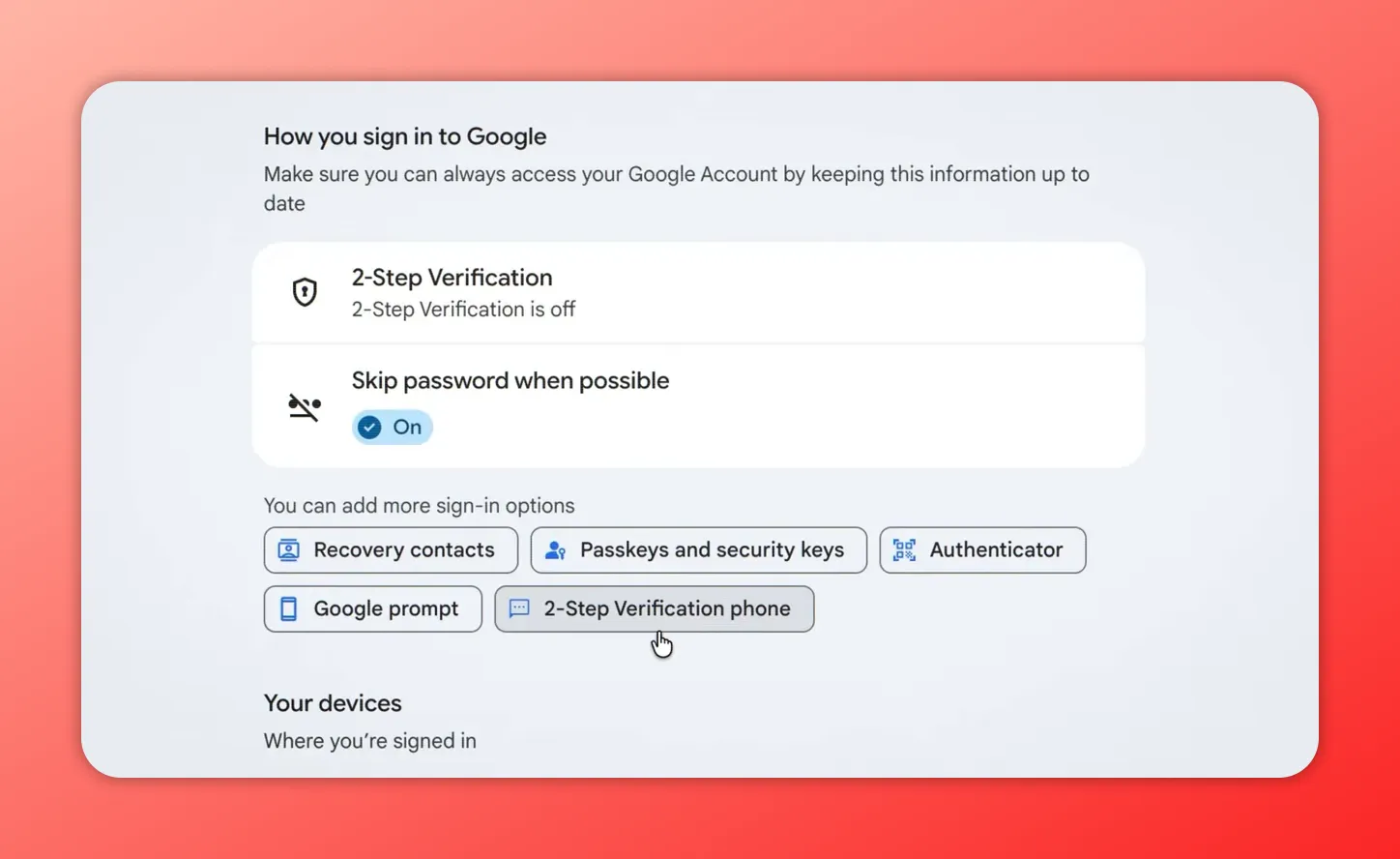
This step is non-negotiable. In your Google account, open Security → 2-Step Verification and turn it on. Use an authenticator app if possible (it’s more secure than SMS). Protecting your account stops a nightmare morning where you wake up and your channel has been compromised.
Quick checklist before you record
- Channel created and named
- Profile image and banner uploaded
- Short channel description with natural keywords
- 5–10 channel keywords set in Settings
- Two-step verification enabled on your Google account
Now film and upload (and keep going)
Once the setup and security are done, pick a simple first video: introduce yourself, explain what the channel will cover, and show one useful thing your audience can take away. Upload, add an optimized title and description, create a custom thumbnail, and publish. Then repeat: consistent content is the engine of growth.
How to start a YouTube channel in 2026: Resources and further reading
Want more help after you know how to start a YouTube channel? The TubeBuddy blog has in-depth guides on every next step:
- Beginners guide to setting up your channel
- How to write great descriptions
- YouTube thumbnail tips
- Beginner’s guide to YouTube keyword research
- Advanced YouTube keyword research tips and tactics
Pro tips
- Use your face when possible: viewers connect faster and retention improves.
- Natural keywords beat keyword stuffing: write for people first, algorithm second.
- Design for mobile: profile images and banners must be legible at small sizes.
- Reserve time for security: enable two-step verification before you get invested in your channel.
Where to go next
After you start uploading videos to your new channel, focus on getting your first subscribers and building up that all-important YouTube watch time.
- How to get your first 100 YouTube subscribers
- How to get your first 1000 YouTube subscribers
- How to build and maintain a healthy YouTube content calendar
What’s the big idea?!
Get video inspo backed by data. Next Video Ideas analyzes your channel, audience, niche, and millions of YouTube datapoints to make your next video a #1.
FAQ – How to start a YouTube channel
How long does it take to create a YouTube channel?
Creating the channel itself takes a few minutes. Customizing your profile (images, banner, description, keywords) and securing the account with two-step verification can be done in 10–20 minutes. Filming and editing your first video will take longer depending on your format.
Do I need special equipment to start?
No. Many successful creators started with a phone and basic editing apps. As you grow, invest gradually in better audio, lighting, and a camera. For guidance see TubeBuddy’s post on what equipment you really need: https://www.tubebuddy.com/blog/what-equipment-first-youtube-video/.
What are channel keywords and where do I add them?
Channel keywords are tags that summarize what your channel covers. Add them in YouTube Studio → Settings → Channel. Pick 5–10 descriptive phrases that match your niche and content topics.
Should I enable two-step verification right away?
Yes. Enable two-step verification in your Google account immediately. It’s the strongest defense against account takeover and the single most important security step for creators.


