Watch video




 Sign in with Google
Views and Subs
Five critical YouTube settings too many creators miss

If you miss these five critical YouTube settings, you’re setting yourself up for failure.
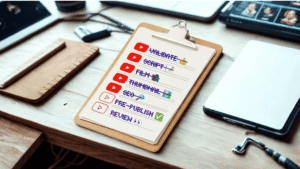
A few simple YouTube settings decide whether viewers stick around, whether bots trash your comments, and whether bad actors can take your channel away. These five YouTube settings take minutes to configure but make a huge difference in first impressions, safety, and discoverability. Follow the quick checklist below to make your channel look professional, protect your account, and help YouTube recommend your content to the right viewers.
Table of Contents
- 1. Fix your empty home tab so visitors see your videos immediately
- 2. Block spam automatically with community moderation
- 3. Lock down your account with two-step verification
- 4. Help YouTube understand your channel: set your channel keywords
- 5. Design a clear banner and channel description to convert viewers into subscribers
- quick checklist: the five must-do YouTube settings
- where to learn more
- faq
- final thoughts
1. Fix your empty home tab so visitors see your videos immediately
First impressions matter. If someone lands on your channel and the Home tab looks empty, they’ll assume you’re not taking this whole YouTube thing seriously and bounce. It’s a simple fix in YouTube Studio to make thumbnails and recent videos visible on your Home tab:
- Open YouTube Studio → Customization → Home.
- Under the Home tab, click Add section → Videos.
- Drag the Videos section to the top of the layout.
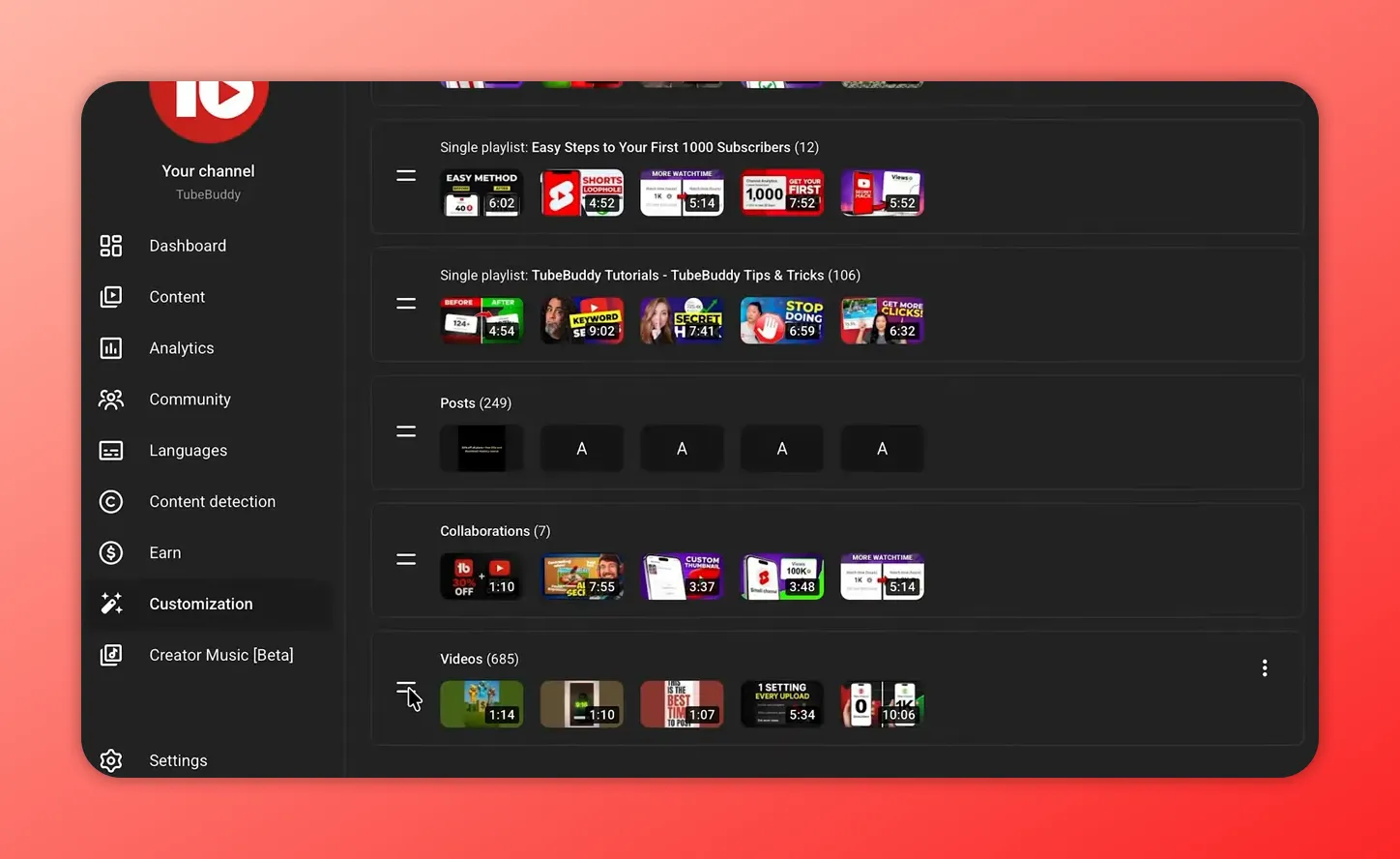
That simple change turns a blank page into proof you’re actively posting — thumbnails, titles, and upload recency build trust and increase the chance someone watches and subscribes.
2. Block spam automatically with community moderation
Spam comments and link bots make your channel look amateur, discourage real viewers from engaging, and they’re a waste of time. Two YouTube settings clean up the comment section without hiding genuine conversation:
- Go to YouTube Studio → Settings → Community moderation and set “Comments on new videos and posts” to Basic. This blocks most low-quality comments while letting real ones through.
- In the same Community tab, add sensitive words or personal info (your real name, phone, address) to the Blocked Words list.
- Turn on “Hold comments with hashtags and URLs” to keep link-spam and advertising bots out of your public feed.
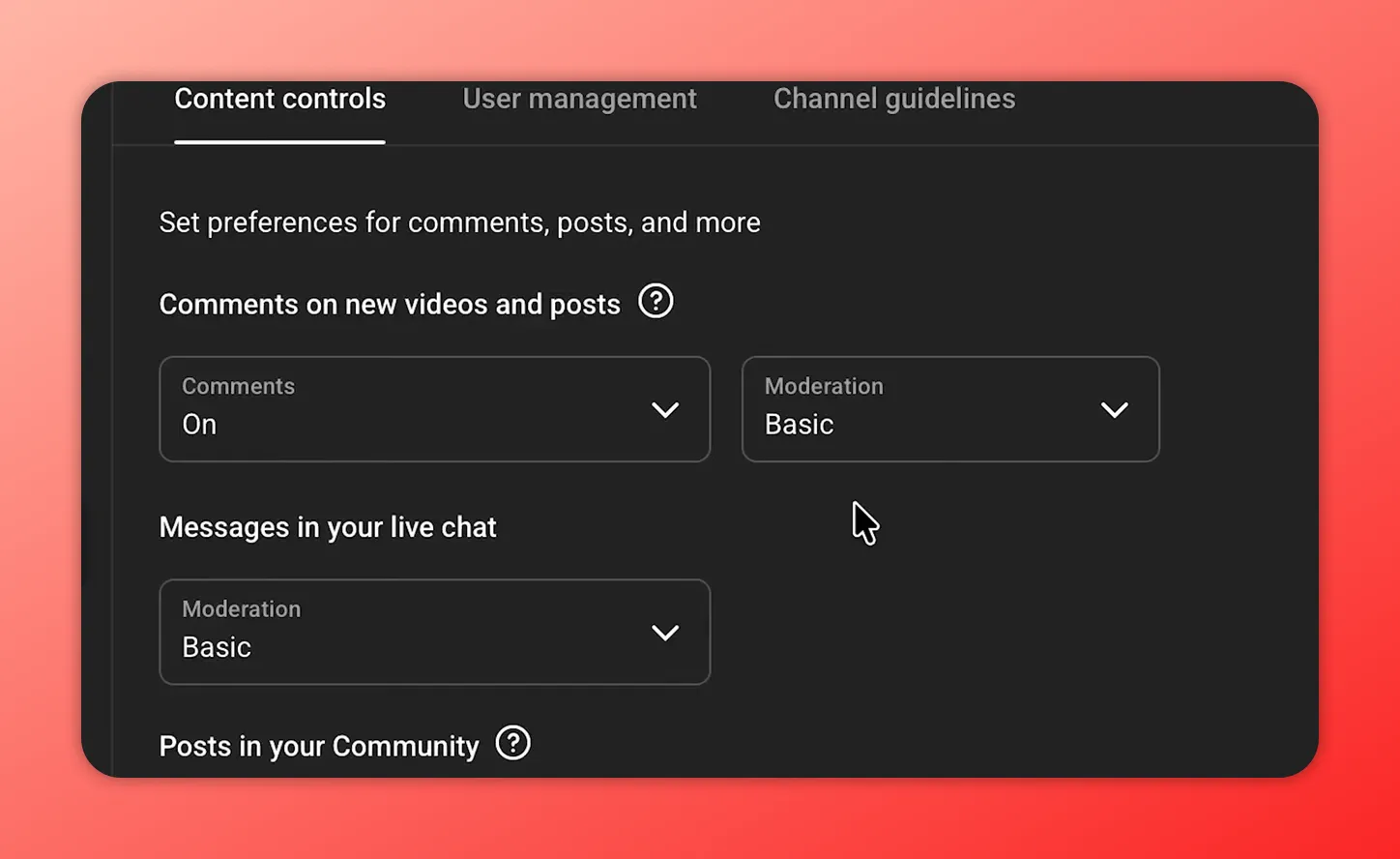
Set ‘Comments on new videos’ moderation to Basic to block spam automatically.
Spend five minutes here and save hours later — moderation tools are your first line of defense against junk and scams.
3. Lock down your account with two-step verification
A single compromised password can cost you everything. Even big channels get hacked. Two-step verification (AKA two-factor authentication or 2FA) dramatically reduces risk.
- From YouTube, click your profile → Google account → Security.
- Find Two-step verification and follow the prompts to add your phone and verify using the code Google sends.
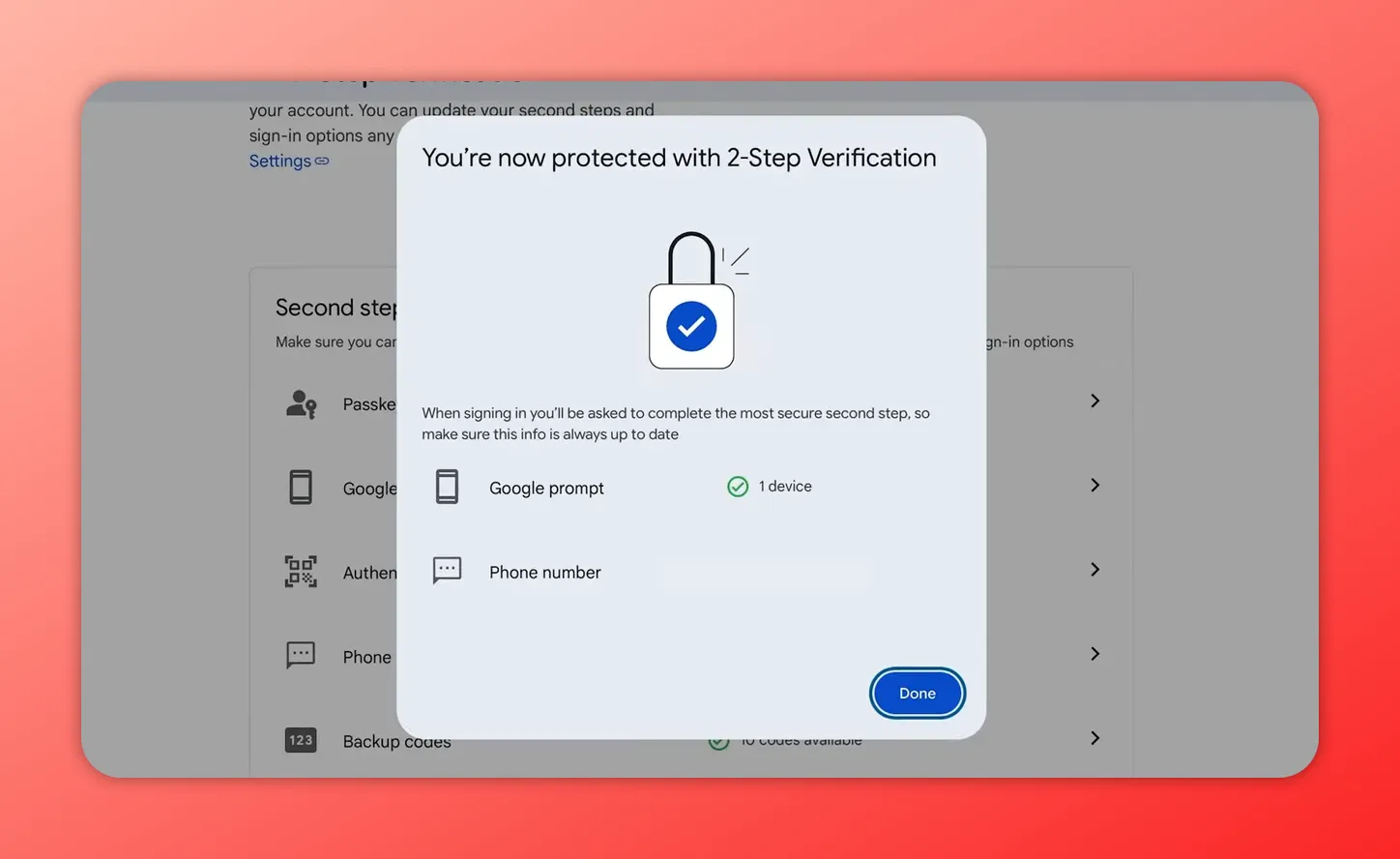
With two-step verification enabled, an attacker with your password still can’t log in without your phone — it’s one of the most effective YouTube settings for creator safety.
It’s not a perfect solution—no security measure is—but turning on YouTube 2FA at least ensures your channel isn’t the easiest target.
4. Help YouTube understand your channel: set your channel keywords
Channel keywords tell YouTube what your content is about and help the algorithm recommend your videos to relevant viewers. Don’t overthink this: list the main topics you’ll cover (for example: fitness, gaming, beauty, YouTube education).
- Open YouTube Studio → Settings → Channel → Keywords.
- Add a short list of descriptive words or phrases that match your channel’s focus.
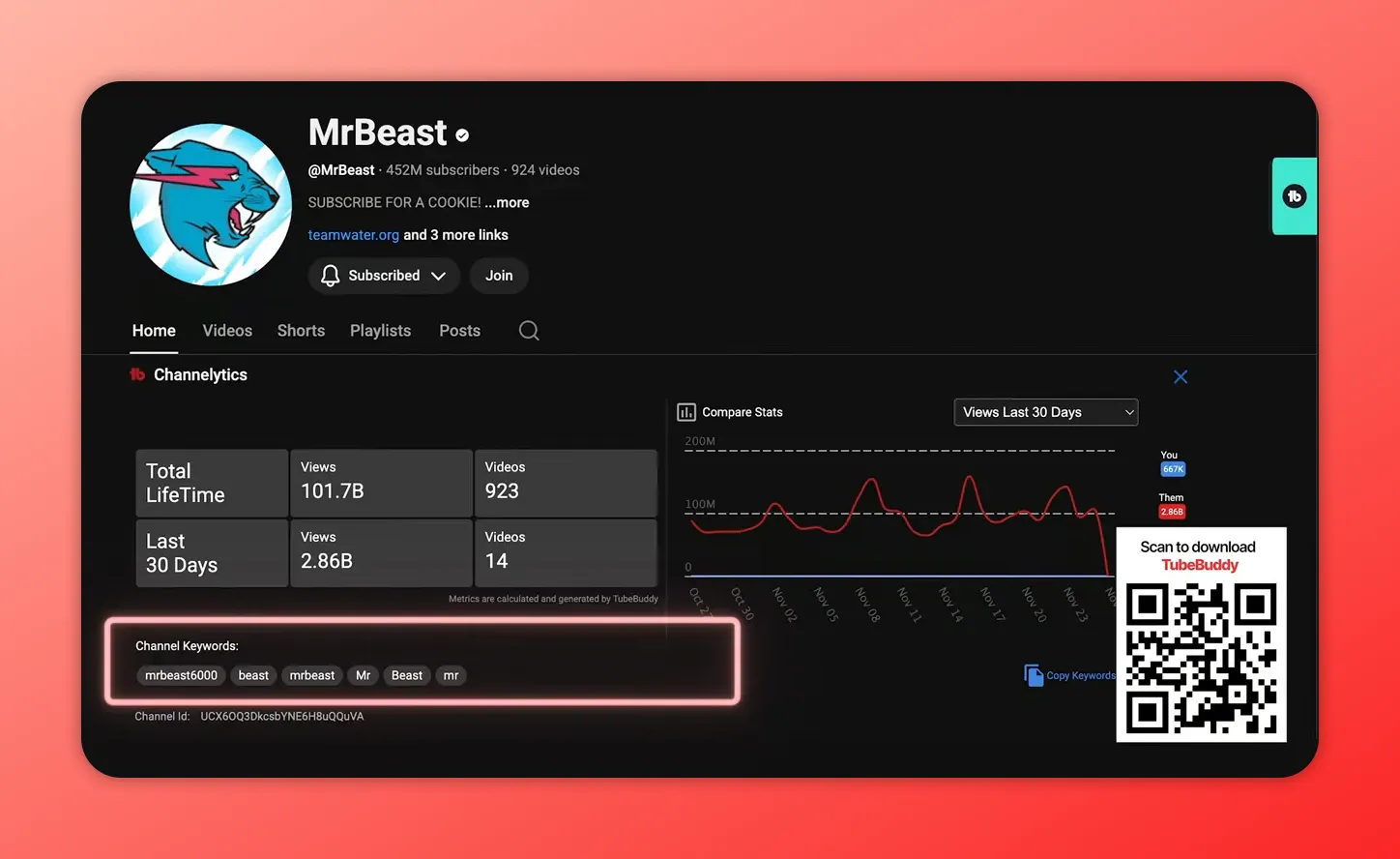
These keywords are especially valuable when you’re starting, because they help YouTube place your videos in the right “lane” for recommendations and search. If you need help brainstorming, tools like ChatGPT or TubeBuddy’s keyword features can suggest options.
5. Design a clear banner and channel description to convert viewers into subscribers
Your channel banner and description are the conversion assets on your channel page. Nearly half of many channels’ subscribers come from people who click Subscribe directly on the channel page so make it count.
- Create a clean banner (Canva is a free option). Keep it simple: what your channel is about, a short tagline, and when you upload.
- In Customization → Basic info, write a short personal description. Put who you are and what you do in the first 50 characters so it isn’t cut off.
- Use a few sentences to explain why people should stick around and subscribe.
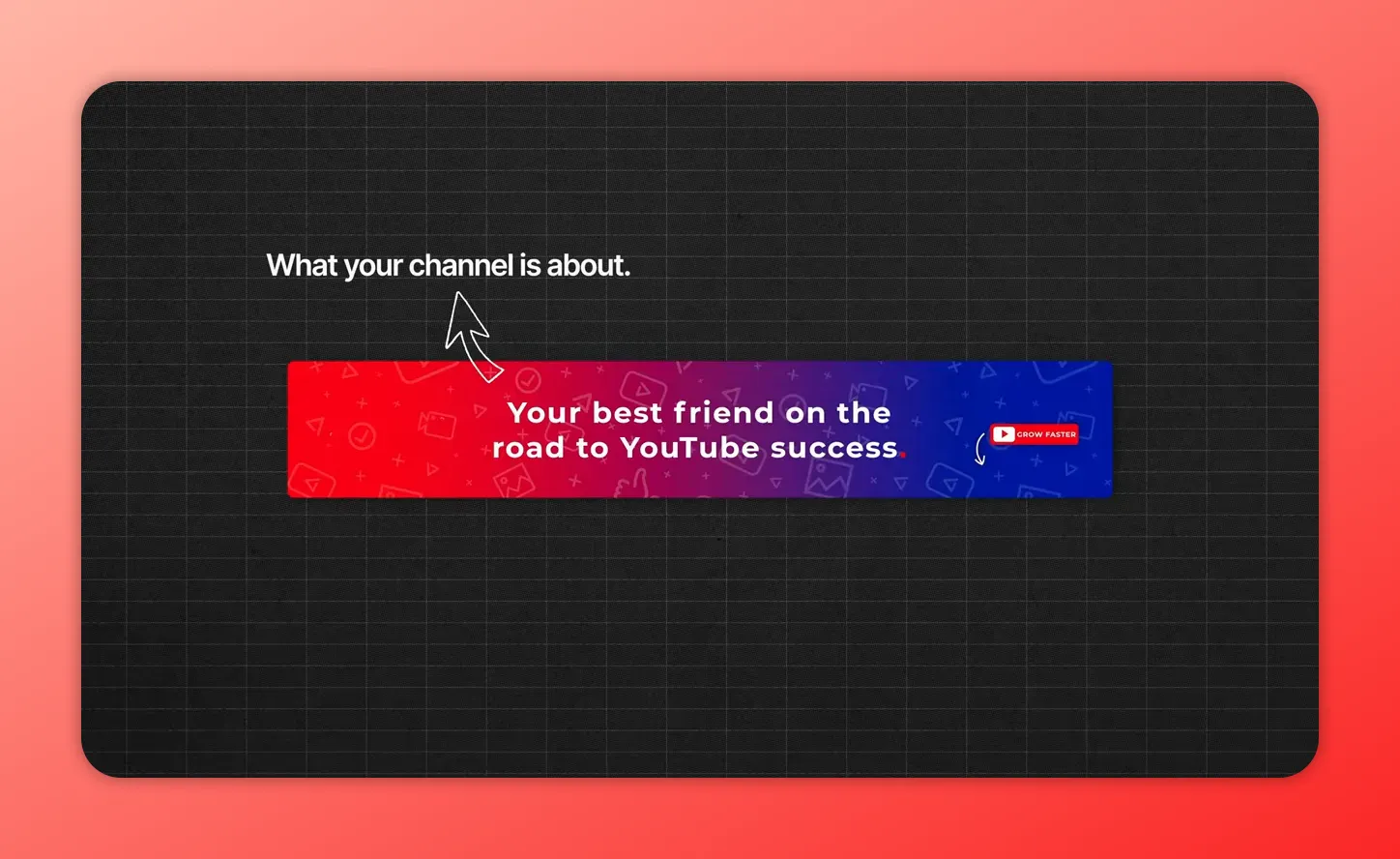
Tie these elements together with the other YouTube settings above and your channel will look finished, trustworthy, and ready to convert casual visitors into subscribers.
Checklist: the five must-do YouTube settings
- Customize Home tab: add Videos and pin it to the top (YouTube Studio → Customization → Home).
- Comments moderation: set Comments on new videos to Basic, add Blocked Words, hold comments with hashtags/URLs.
- Security: enable two-step verification in your Google account.
- Channel keywords: describe your channel topics in Settings → Channel → Keywords.
- Banner + description: clear banner and first-50-character hook in Customization → Basic info.
More resources for YouTube creators
- How to start a YouTube channel in 2026
- Top five tips to get seen
- Get more subscribers on YouTube
- Optimize thumbnails and titles for clicks
Final thought: Five critical YouTube settings too many creators miss
These five YouTube settings are small, fast, and non-negotiable for creators who want a professional-looking channel that’s safer and easier to grow. Set them up now and you’ll prevent common rookie mistakes that cost views, time, and maybe even your entire channel.
FAQ – Five critical YouTube settings too many creators miss
How quickly should I set these YouTube settings after creating a channel?
Do them immediately. Most take a few minutes and they prevent an empty-looking Home tab, reduce spam, protect your account, and help YouTube recommend your videos from day one.
Will channel keywords guarantee more views?
No single setting guarantees views, but channel keywords help YouTube understand your niche so it can show your videos to the right audience. Combine keywords with good titles, thumbnails, and watch-time-focused content for the best results.
What if I don’t want to moderate comments manually?
Use the Community moderation settings (Basic mode, Blocked Words, and hold hashtags/URLs). For bulk actions and automations, TubeBuddy bulk tools and the YouTube Studio moderation queue can save time.
Learn more about moderating and interacting with YouTube comments.
Can I change these settings later?
Yes. These YouTube settings are editable at any time. Review them periodically as your channel grows or your content focus changes.