Watch video



 Sign in with Google
YouTube Strategy
YouTube end screen strategy for views: one minute that can double watch time

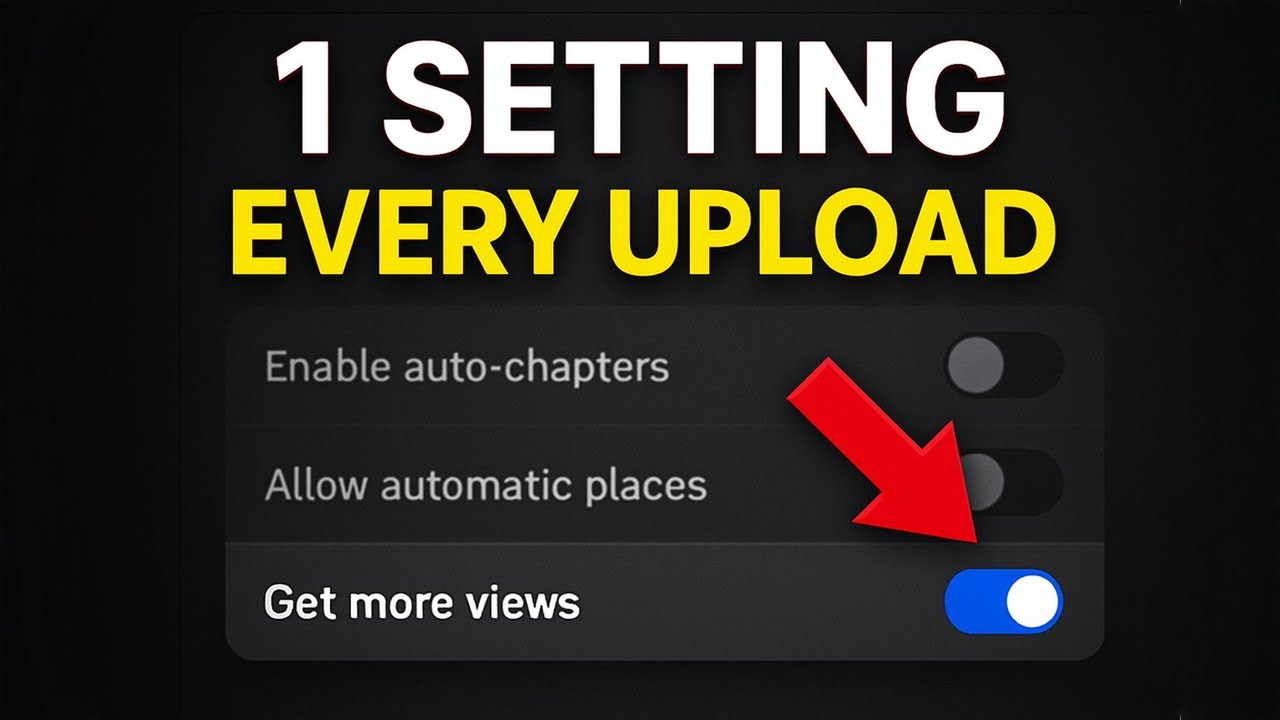
Wouldn’t it be nice if YouTube had a “get more views” button? You hit it and boom, your video gets (wait for it) more views.
Turns out, it kinda does. This simple and too often ignored YouTube setting is the same one top creators use to drive views and double watch time. It’s a simple YouTube end screen strategy for views that’s built into YouTube Studio, takes about a minute to set up, and sends viewers to the exact videos you want them to watch instead of letting YouTube decide for you.

What’s the big idea?!
Get video inspo backed by data. Next Video Ideas analyzes your channel, audience, niche, and millions of YouTube datapoints to make your next video a #1.
Table of Contents
- Why end screens are your highest-value views
- Pick the right video to promote
- How to set up your YouTube end screen strategy for views
- Track what works in YouTube analytics
- Quick checklist for every upload
- Resources and further reading
- FAQ
- Final thought
Why end screens are your highest-value views
End screens are the clickable boxes that appear in the last five to 20 seconds of a video. Too many creators either skip end screens or add them without having a real plan. But when used correctly, an end screen becomes a reliable way to send thousands of extra views to your other videos from viewers who already watched your full video.
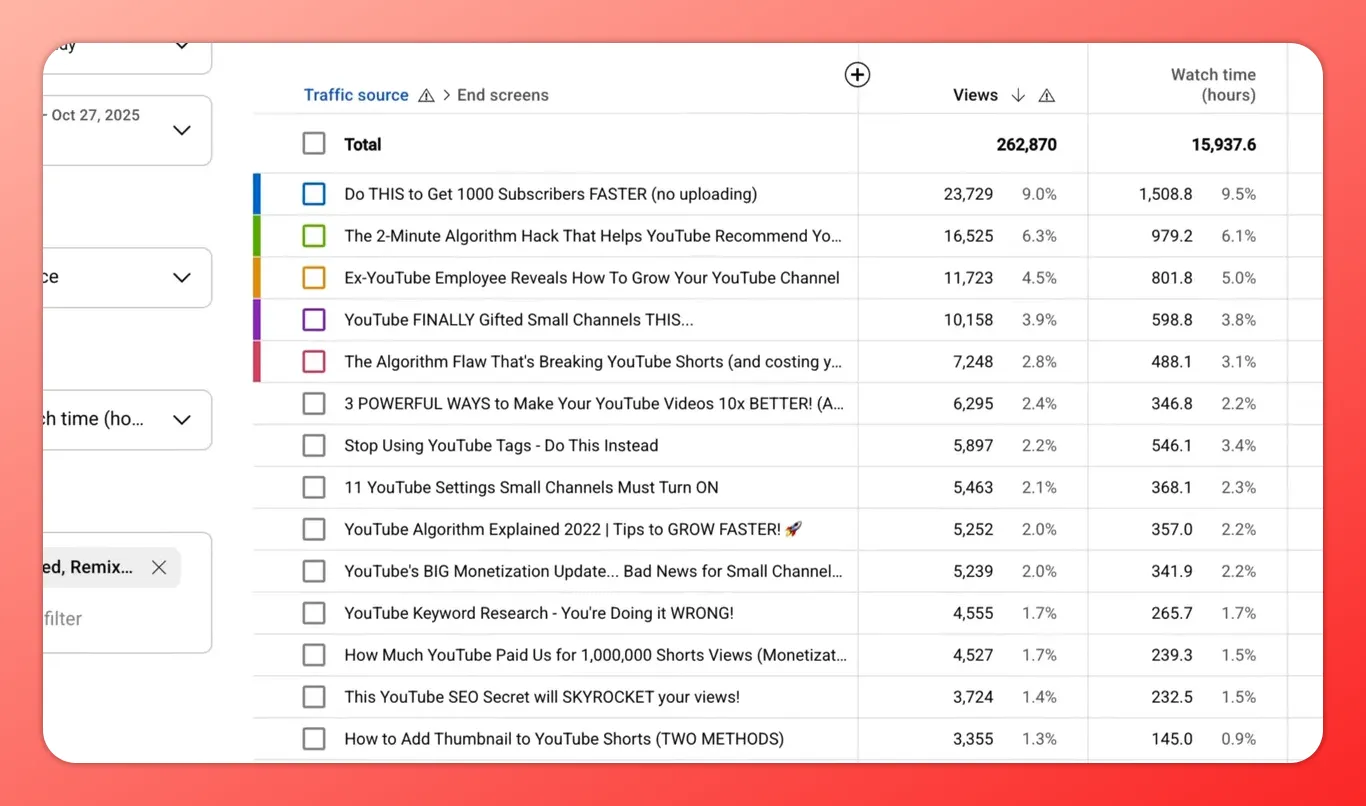
End screens drove thousands of views to specific videos — here’s the breakdown.
On the TubeBuddy YouTube channel we’ve seen big lifts: 23,000 extra views on one video, 16,000 on another, and several that added 10,000+ views. Even more important than raw views is watch time. For one example, viewers who clicked an end screen watched an average of 3 minutes 32 seconds, while the overall watch time for that video was only 1 minute 40 seconds. That’s (quick math) more than double the watch time.
Pick the right video to promote
The trick for a YouTube end screen strategy for views is choosing the right video. Before you finish filming, ask: if someone watched this entire video, which of your videos would they naturally want to watch next? The key word is naturally. Your rule of thumb: choose an end screen that at least 70% of your viewers would be interested in after watching the current video.
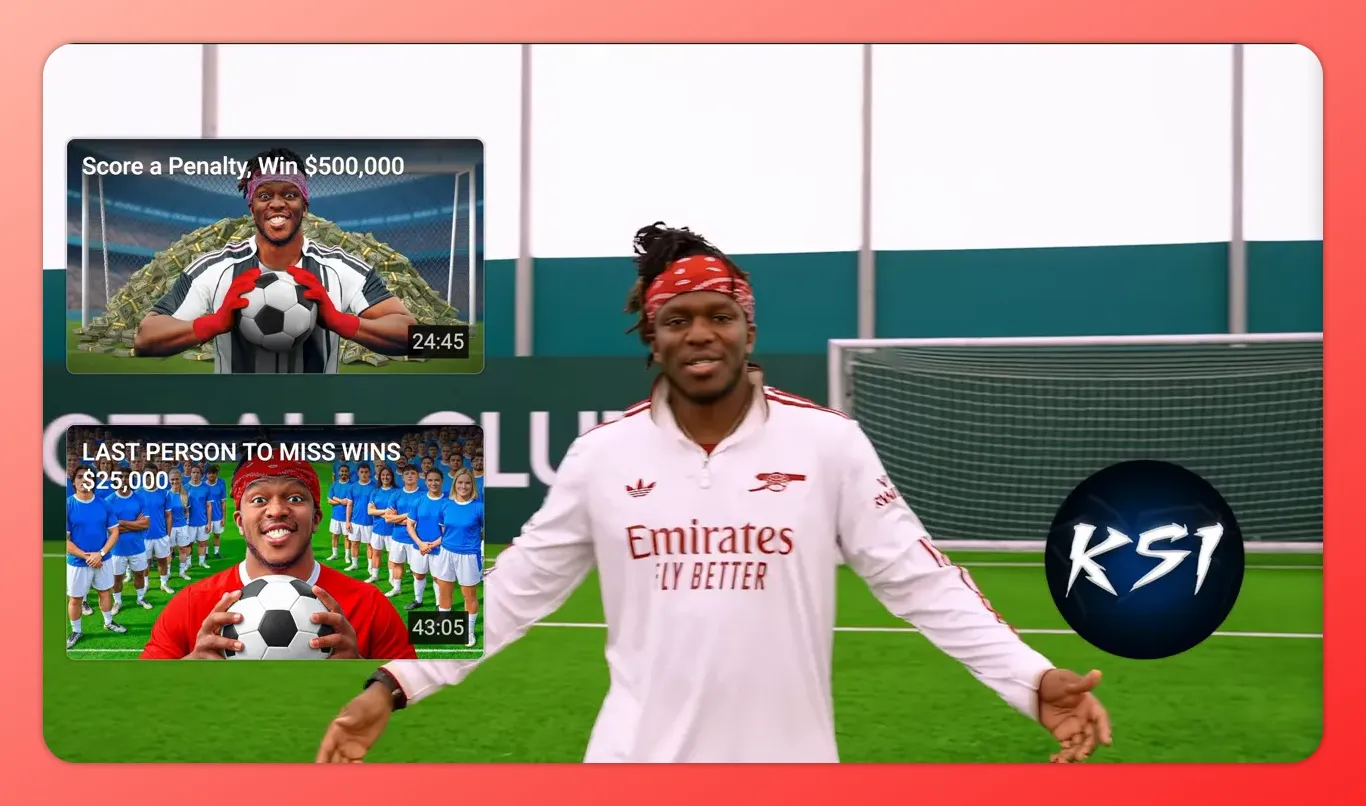
Example end screen with two video thumbnails and a channel badge — pick the most logical next video.
Pick videos that go deeper on the same topic, answer the logical next question, or lead toward a conversion (subscribe, playlist, or a cornerstone video). When viewers click because it makes sense, they’re already engaged. And let’s not forget that that YouTube algorithm loves session behavior; the longer you can keep people engaged, the happier the algorithm is to surface your videos to other viewers.
You need to think about all of this before you record, because this strategy works best when you reference your end screen video in your content.
How to set up your YouTube end screen strategy for views
First, you’ll need to be on your computer to do this properly. Mobile uploads don’t let you add end screens. If you have to upload on mobile, make a note to come back and add an end screen as soon as possible.
- Upload your video and open the video details or editor page.
- Find the end screens section and click the plus button to add an element.
- Choose Video and then select Specific video (not “best for viewer” or “most recent”), and pick the exact video you mentioned in your outro.
- Position the element on-screen and adjust the timeline so it appears when you talk about it in your outro.
- Save and publish.
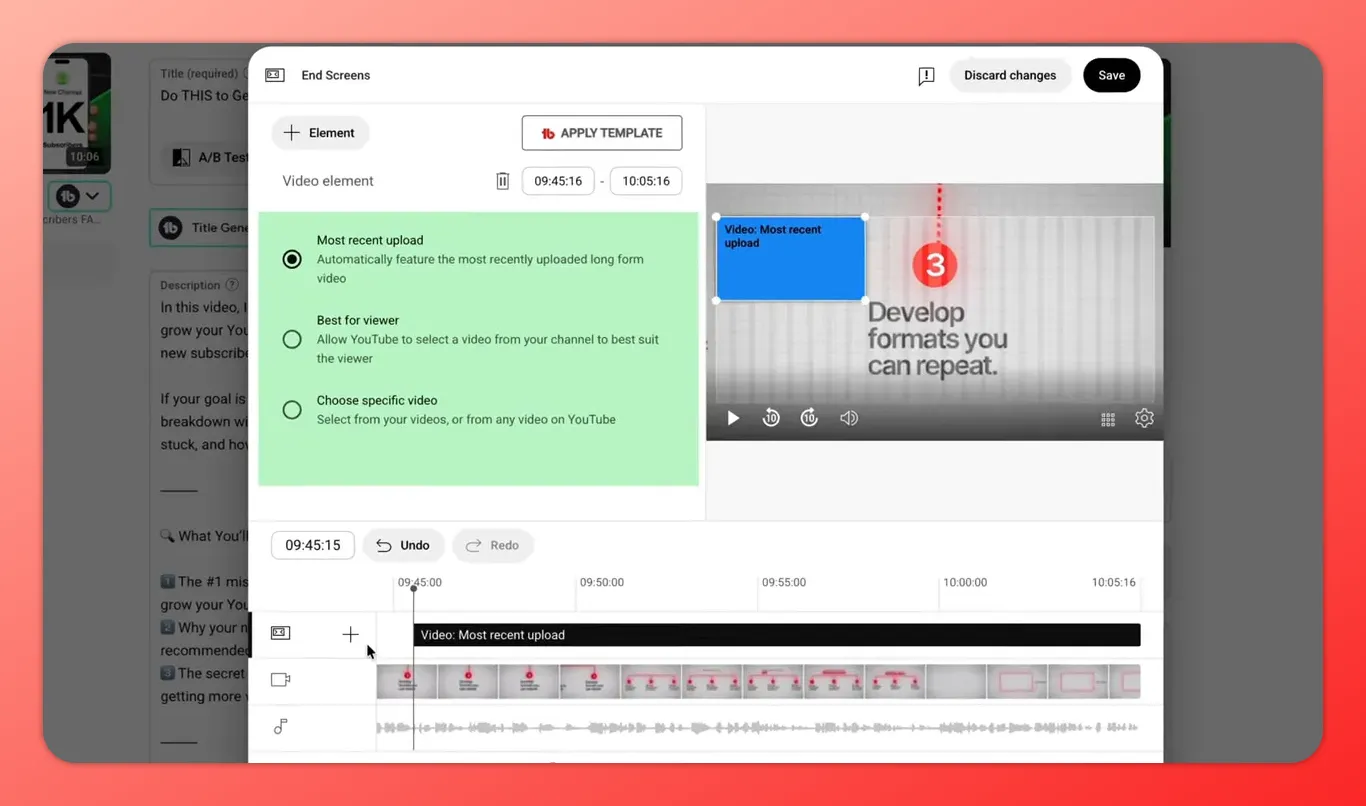
Position the end-screen element on the preview and adjust timing to match your outro.
At the end of your video, don’t just point to the end screen—tell people why they should click. Give a short, specific reason: what they’ll learn, how it helps, or why it’s the logical next step. Make it personal and urgent enough to get the click.
Track what works in YouTube analytics
To see if your YouTube end screen strategy for views is working, open YouTube Studio → Analytics → Engagement (or Advanced Mode → Traffic Source → Endscreens). Look for the in-screen element click rate. This number shows the percentage of people who saw your end screen and clicked it.
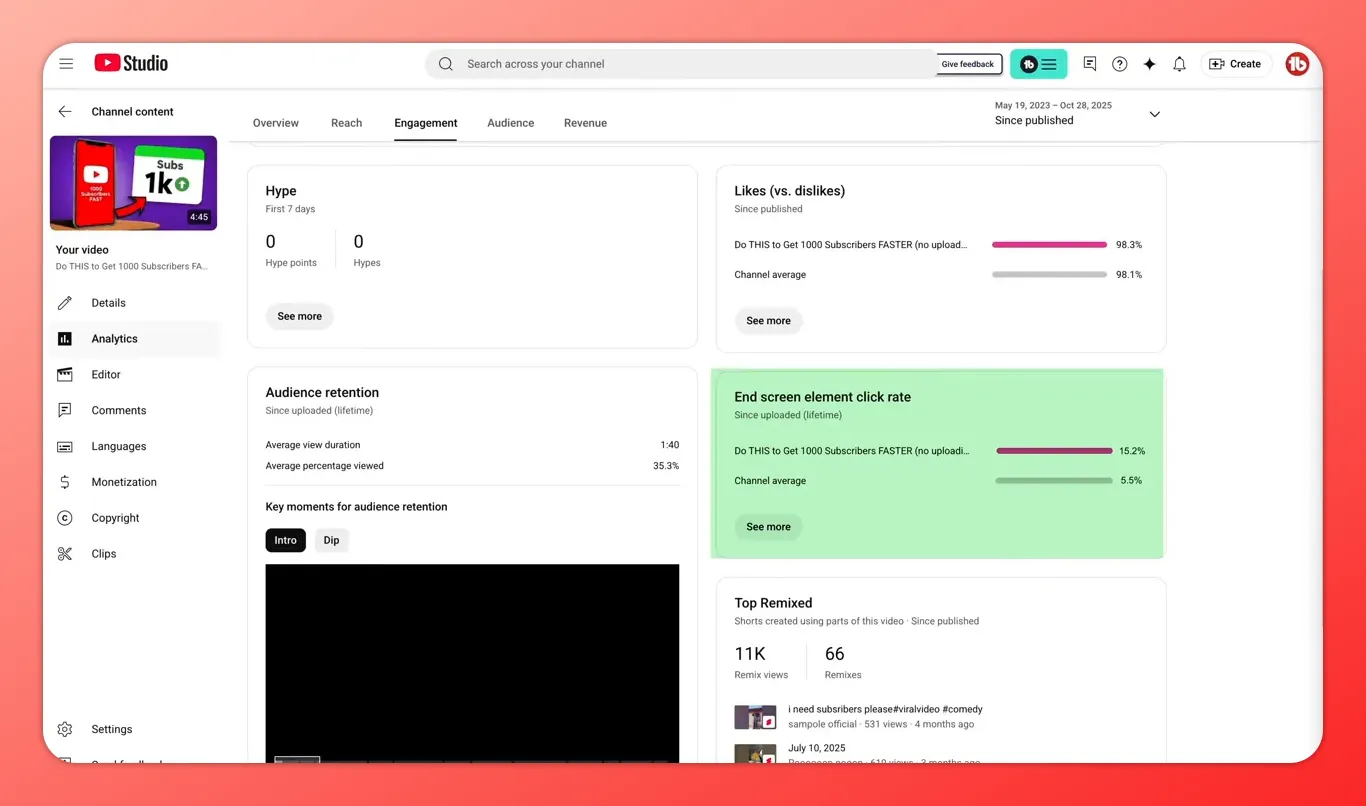
End-screen element click rate visible in the Engagement panel.
Our channel average sits around 5.5%, but top-performing end screens can exceed 15%. Check these metrics a few days after a video goes live, review the scripts and calls-to-action that performed well, and apply that phrasing to future outros.
Quick checklist for every upload
- Decide the “next” video before you finish filming.
- Mention that specific video in your outro and tell viewers why to click.
- Add a specific-video end screen from your desktop and time it to your outro.
- Monitor in-screen click rate in Analytics and replicate top performers.
Resources and further reading
Want to go deeper on watch time and channel growth? Check out these TubeBuddy guides:
- How to generate 4000 hours of YouTube watch time faster
- YouTube analytics how to
- Top five tips to get seen on YouTube
- Understanding Tubebuddy Bulk YouTube Tools (save time adding end screens across many videos)
What’s the big idea?!
Get video inspo backed by data. Next Video Ideas analyzes your channel, audience, niche, and millions of YouTube datapoints to make your next video a #1.
FAQ
How long should my end screen be visible?
End screens can appear anywhere in the last 5–20 seconds. Time them to match your outro: show the end screen while you give a clear, verbal reason to click.
Should I use “best for viewer” or a specific video?
Choose “specific video” when you’ve explicitly mentioned that video in your outro. That direct call-to-action outperforms generic recommendations because it aligns with viewer intent.
Can I add end screens from my phone?
Not reliably. Add or edit end screens from a desktop—mobile uploads don’t support full end-screen editing.
How soon will I see results?
Check in a few days. In-screen click rates and the extra views they generate typically become clear within 48–96 hours after publish.
Final thought
Use a well-planned YouTube end screen strategy for views on every video: pick a natural next video, tell viewers why to click, add the end screen from a computer, and measure results. It’s one minute of setup that can meaningfully increase views, session watch time, and channel growth.